Astro SEO Setup: Connect Google, Bing, Analytics and Email (Part 2)
Let's get in touch
Part 1 got my website live on Astro. Part 2 is the Astro SEO setup after launch: getting the site found by Google and Bing, measuring visitors without breaking GDPR, and giving the domain a working email address. I did all of it in one evening with Claude Code, and none of it costs money.
This guide is that evening, step by step, with screenshots. It assumes you finished part 1: your Astro site is live on Cloudflare Pages, the code is on GitHub and Claude Code can publish changes.
Prefer a checklist? The free Website Set-up Trello template has a card for every step below, in the two “Part 2” lists. It is also on my Free Resources page.
What you get at the end: your site registered with Google, Bing and Yandex, a sitemap they read, automatic pings when pages change, Google Analytics and Microsoft Clarity behind a cookie banner, a privacy page, and email on your own domain landing in Gmail.
What you need before you start
For this Astro SEO setup you need the accounts from part 1, one Google account and about one hour.
| What | Why you need it | Cost |
|---|---|---|
| Your live Astro site on Cloudflare Pages, from part 1 | Every tool below points at it | Free |
| A Google account | Search Console, Analytics and Tag Manager | Free |
| A Yandex ID | Yandex Webmaster | Free |
| Claude Code | Writes the banner, the privacy page and the tracking setup | Your Claude subscription |
The same two labels as in part 1:
- You do this means signing in, accepting terms and clicking in dashboards.
- Claude does this means you paste a prompt into Claude Code and check the result.
Claude can do the clicking too. I let Claude drive the browser for most "You" steps with Claude in Chrome. I still approved every terms page and every "Sign in with Google" screen myself. Every step below also works by hand, if you prefer to click.
Search engines
Step 1: Pick one Google account for everything
To keep the Astro SEO setup simple, use one Google account for Search Console, Analytics and Tag Manager.
You do this
Why: these three tools link to each other, and links only work inside the same account. I found my old Analytics code from the previous platform in none of my accounts, so I started fresh. That cost me the old history, nothing else.
Lesson from my run: right after the domain moved to Cloudflare in part 1, my own browser said "This site can't be reached" while everyone else could open the site. My home router still remembered the old nameservers. Internet providers keep that old answer for up to 48 hours. Test on your phone with Wi-Fi off before you start fixing things.
Step 2: Google Search Console
To connect Google Search Console to an Astro site on Cloudflare, add a Domain property, let Cloudflare verify it with one click, then submit your sitemap.
You do this
Why: Search Console is how Google tells you which pages it found, which it indexed and which searches show your site. A Domain property covers every version of your site (with and without www, http and https) in one place.
- Open Search Console, click Add property and choose Domain. Type your domain without https.
- Search Console recognises Cloudflare and offers Start verification. A Cloudflare window opens, you approve, and it adds the check record for you.
- Wait for Ownership verified. Mine took about 20 seconds.
- Go to Sitemaps and submit the full address of your sitemap. Astro names it
sitemap-index.xml. - Open URL inspection, paste your homepage address, then click Request indexing. Repeat for your 2 or 3 most important pages.
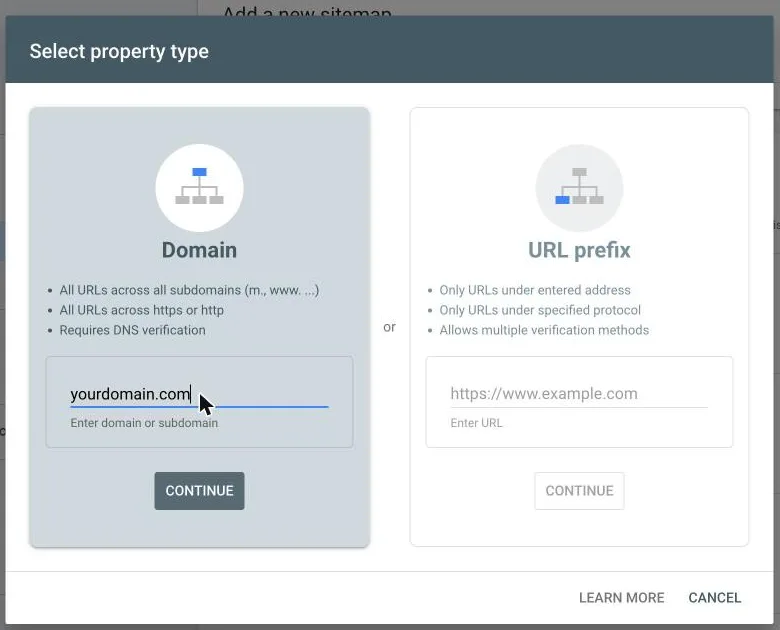
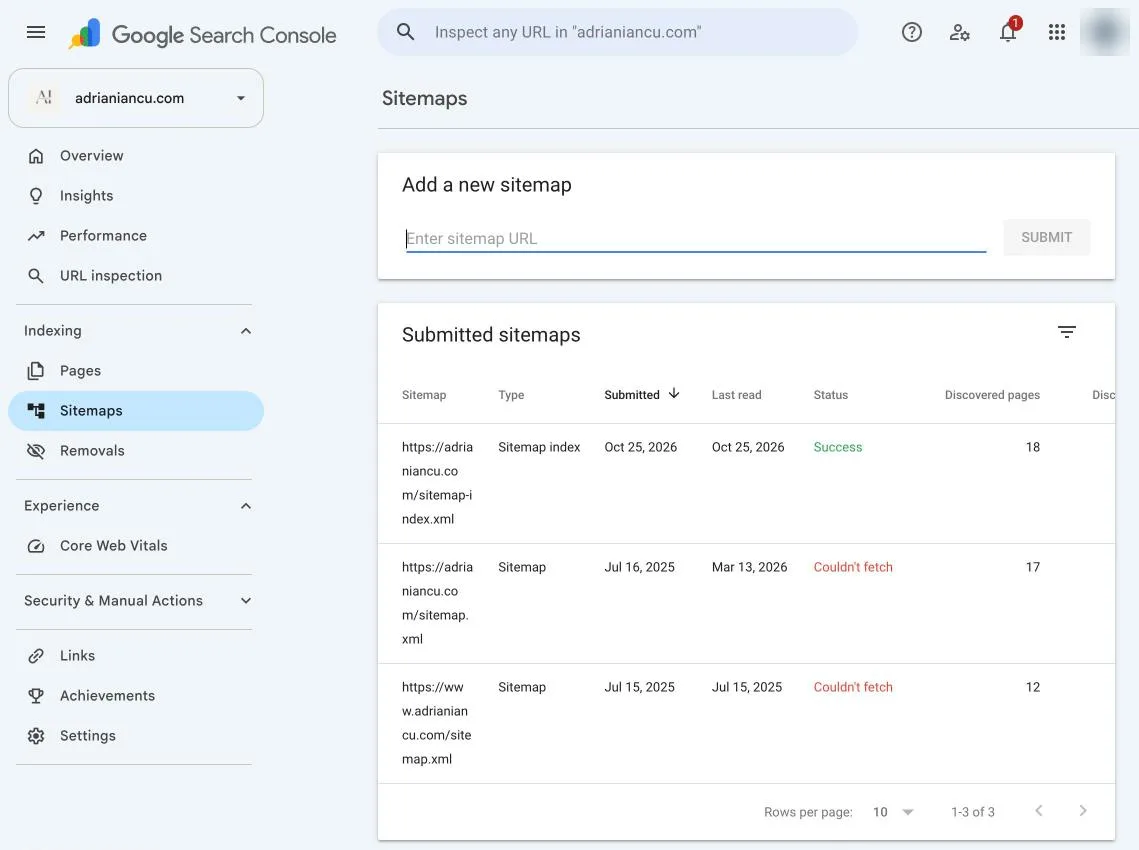
Lesson from my run: typing only sitemap-index.xml gave "Invalid sitemap address". A Domain property needs the full address, starting with https. Right after submitting, the status said "Couldn't fetch". That is normal for a fresh sitemap. About an hour later it read Success with 18 pages.
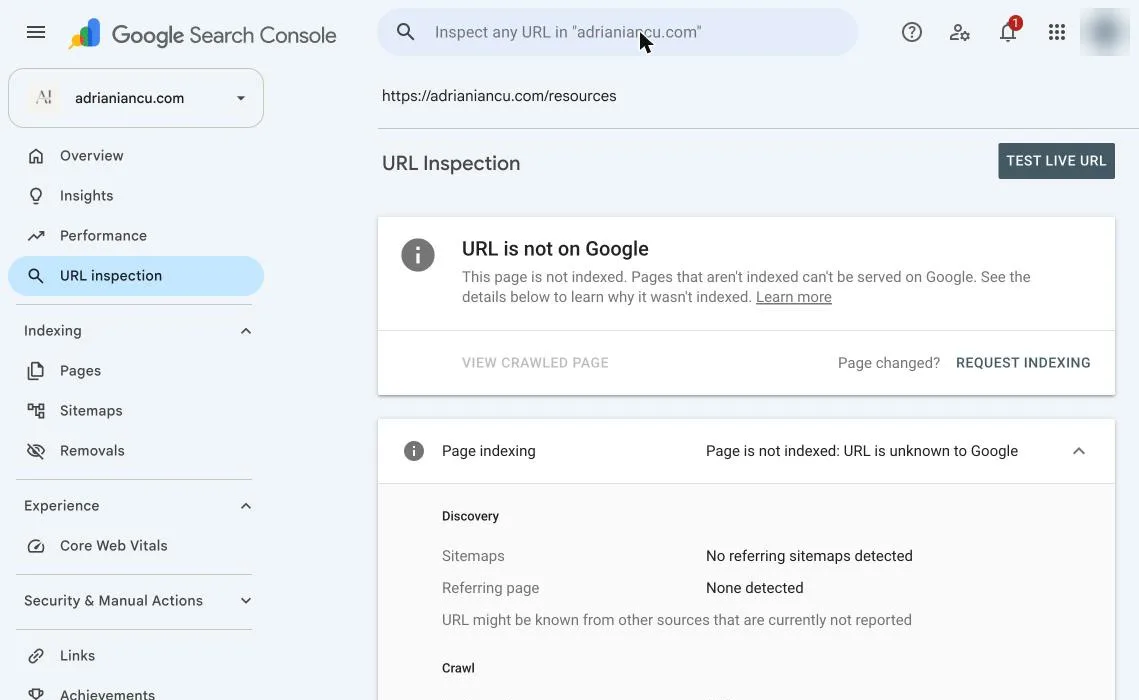
What you see when it works: the sitemap reads Success, and URL inspection says “Indexing requested” for the pages you chose.
Step 3: Bing Webmaster Tools
To add an Astro site to Bing Webmaster Tools, sign in with Google and import it from Search Console. Bing needs no separate check.
You do this
Why: Bing is the second search engine to cover, its index also powers Microsoft Copilot, and the import takes 2 minutes.
- Open Bing Webmaster Tools and sign in with the same Google account.
- Choose Import your sites from GSC and allow read-only access to Search Console.
- Tick only the site you want and click Import.
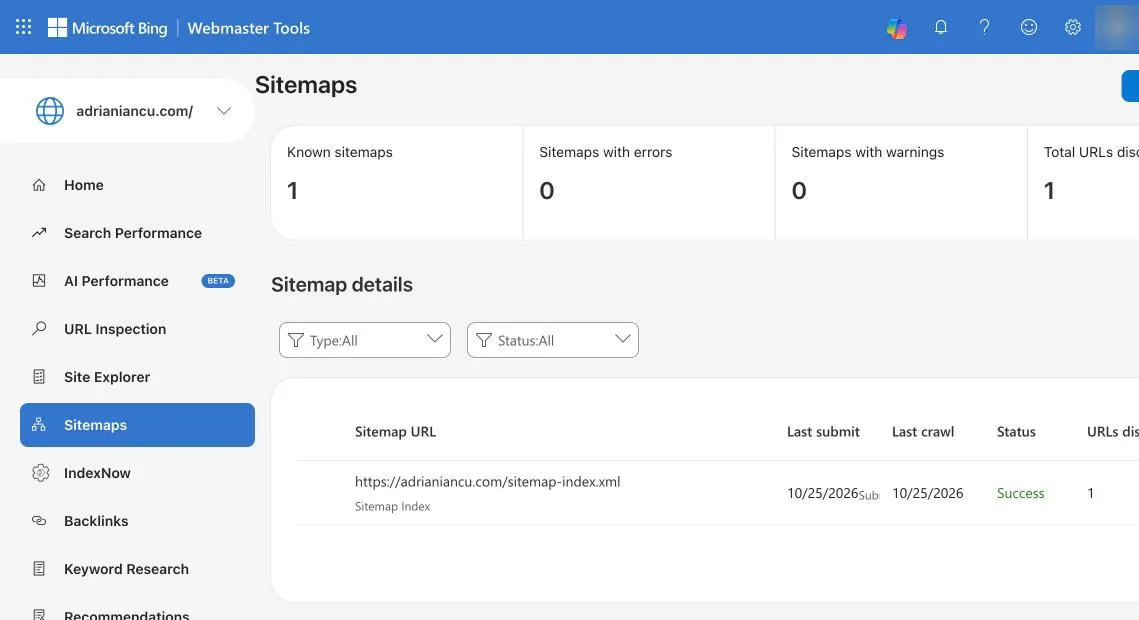
- Open Sitemaps and submit the same sitemap address.
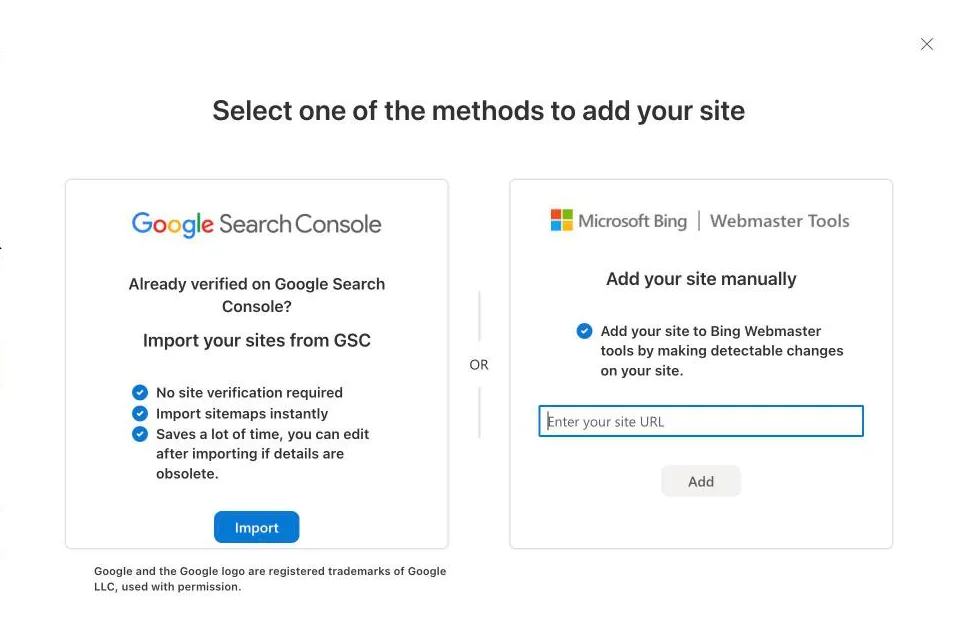
Lesson from my run: the import list showed every site in my Search Console account, all ticked. Untick everything except the site from this guide.
Step 4: IndexNow with Cloudflare Crawler Hints
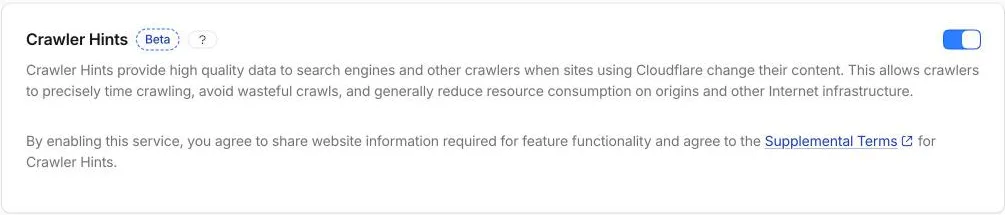
To send IndexNow pings from an Astro site on Cloudflare, switch on Crawler Hints. Nothing to install.
You do this
Why: IndexNow tells Bing, Yandex and other search engines that a page changed, so they come back sooner. Google does not use IndexNow; it relies on your sitemap from Step 2.
In Cloudflare, open your domain, then Caching, then Configuration, and switch on Crawler Hints.
Step 5: Yandex Webmaster
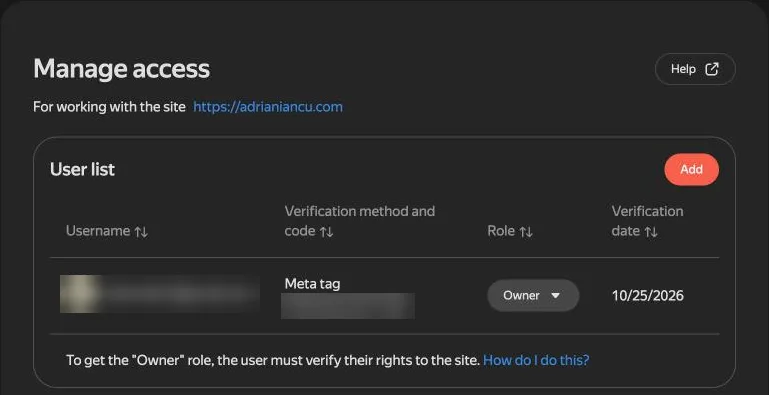
To verify an Astro site in Yandex Webmaster, add the site, copy the meta tag Yandex gives you and let Claude Code put it on every page.
You do this + Claude does this
Why: Yandex is a smaller search engine, but it costs 5 minutes, and IndexNow from Step 4 already tells it about changes.
- Sign in to Yandex Webmaster with your Yandex ID and add your site.
- On the verification screen choose Meta tag and copy the code.
- Paste this into Claude Code:
Add this tag inside the <head> of every page of my Astro site:
<meta name="yandex-verification" content="PASTE_YOUR_CODE_HERE" />
Build the site, check that the tag appears on the homepage, then publish.- When the change is live (about 2 minutes on Cloudflare Pages), click Verify in Yandex.
Lesson from my run: Yandex's sitemap tool was in read-only mode that evening, on their side. Yandex still finds the sitemap through the line in your robots.txt and through IndexNow. Add it in Yandex later when the tool works again.
Tracking, consent and email
Step 6: Google Analytics 4
To add Google Analytics to an Astro site, first create a GA4 account and a web data stream, then copy the measurement ID. The code itself goes in later, through Tag Manager.
You do this
Why: Google Analytics shows how many people visit, which pages they read and where they came from.
- In Analytics, open Admin, then Create, then Account.
- Give the account your name. Untick the box that adds it to an existing organization, if this is a separate project.
- Choose your data sharing settings. I left only Technical support ticked.
- Create a property with your country’s time zone and currency, then a Web data stream for your domain.
- Copy the Measurement ID. It starts with G-.
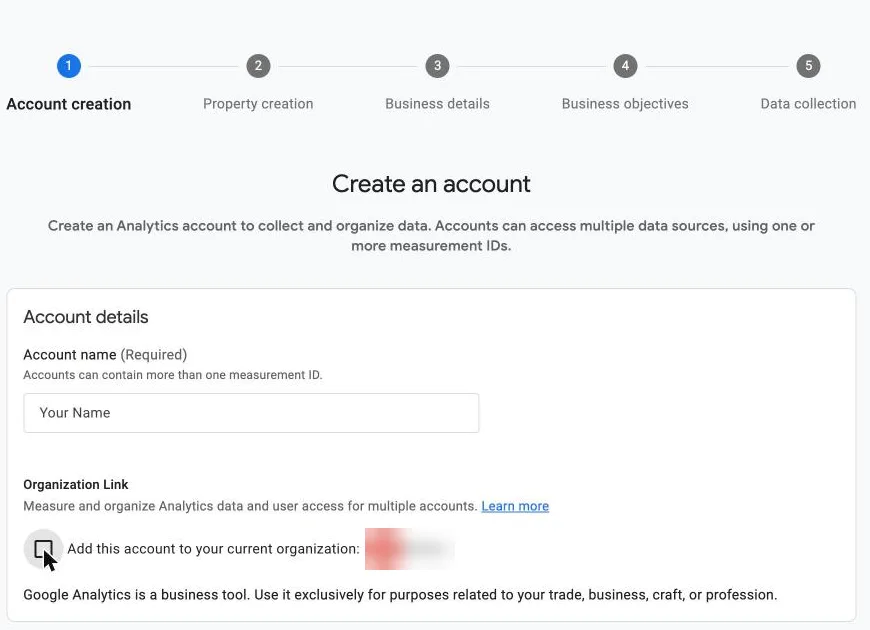
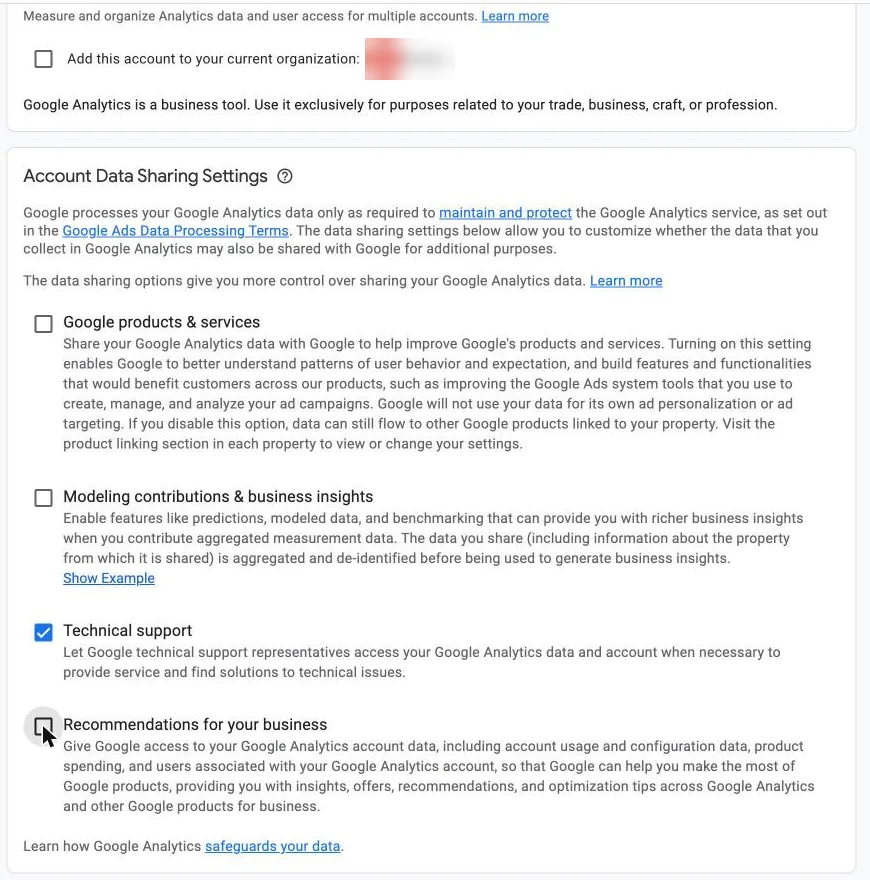
EU tip: on the terms screen, pick your country and tick the Data Processing Terms. Analytics asks for it from companies in the European Economic Area.
Step 7: Microsoft Clarity
To set up Microsoft Clarity, create a project for your site and copy its project ID.
You do this
Why: Clarity is free and shows heatmaps and recordings of how visitors scroll and click. Analytics tells you what happened; Clarity shows you how.
- Sign in to Clarity and create a new project with your site’s address.
- Copy the project ID: the short code of letters and numbers in the address bar, after
/projects/view/.
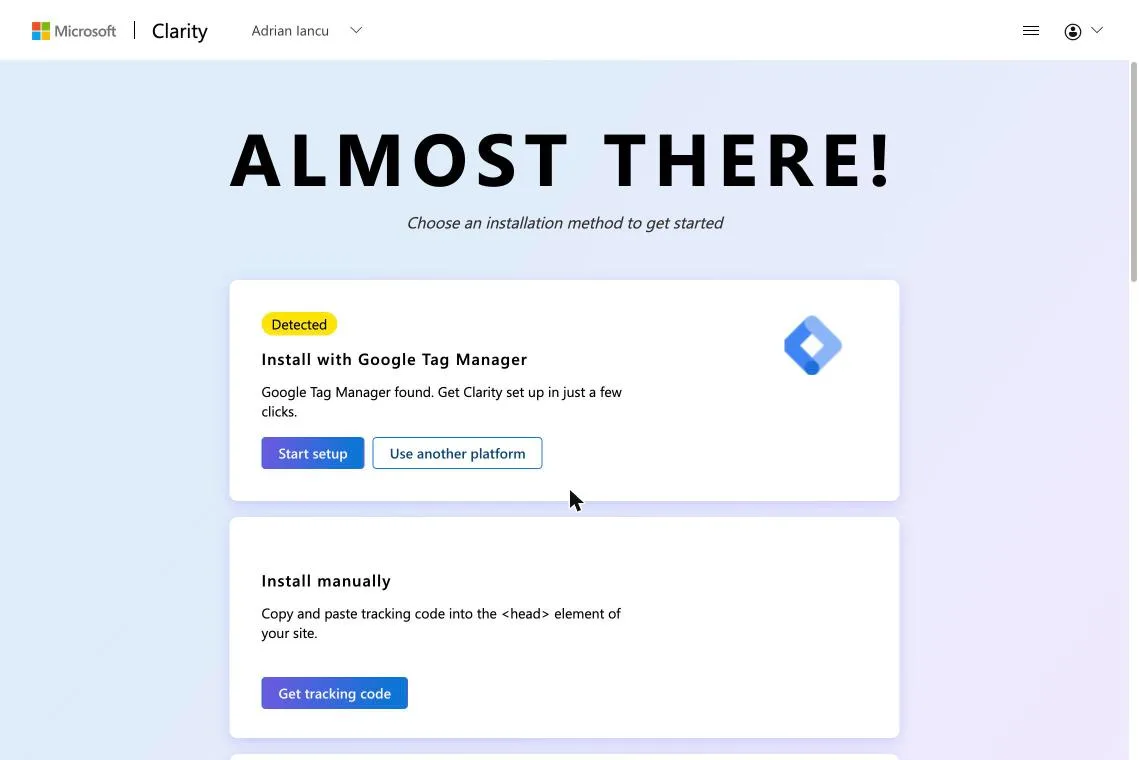
Why I skipped Clarity’s own Tag Manager button: Clarity must wait for the visitor’s consent. The import file in the next step already has that rule built in.
Step 8: Google Tag Manager
To add Google Tag Manager to an Astro site, create a container, then import a ready-made file that holds Analytics and Clarity. Both fire only after a visitor clicks Accept.
You do this + Claude does this
Why: Tag Manager holds all your tracking in one place. Later you can add an ad pixel for a landing page without touching the site’s code.
- In Tag Manager, create an account and a Web container. Copy the container ID, which starts with GTM-.
- Get the import file. Either download my starter file, gtm-consent-starter.json, open it in a text editor and replace
G-XXXXXXXXXXandYOUR_CLARITY_IDwith your own IDs. Or let Claude write it:
Write a Google Tag Manager import file (JSON, export format version 2) with:
- A Google tag for my GA4 measurement ID G-XXXXXXXXXX.
- A Custom HTML tag that loads Microsoft Clarity for project YOUR_CLARITY_ID and then calls
  clarity('consentv2', {ad_Storage: 'denied', analytics_Storage: 'granted'}).
- A data layer variable called analytics_consent.
- One trigger: the custom event consent_ready, only when analytics_consent equals granted.
Both tags fire only on that trigger. Save it as gtm-import.json.- In Tag Manager, open Admin, then Import Container. Choose the file, choose Merge and Overwrite conflicting tags, check the preview, then click Add to workspace.
- Click Submit, then Publish.
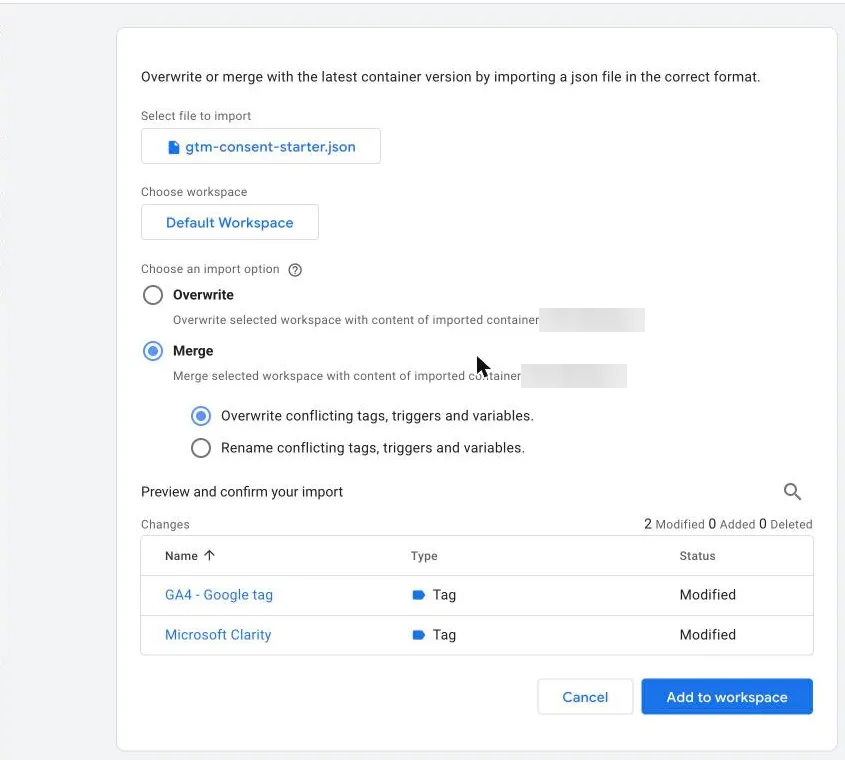
Choose Merge, not Overwrite. Overwrite is selected by default and deletes what the file does not contain, including Tag Manager's built-in variables. The preview shows it before anything happens: on a fresh container Merge says 4 added, 0 deleted.
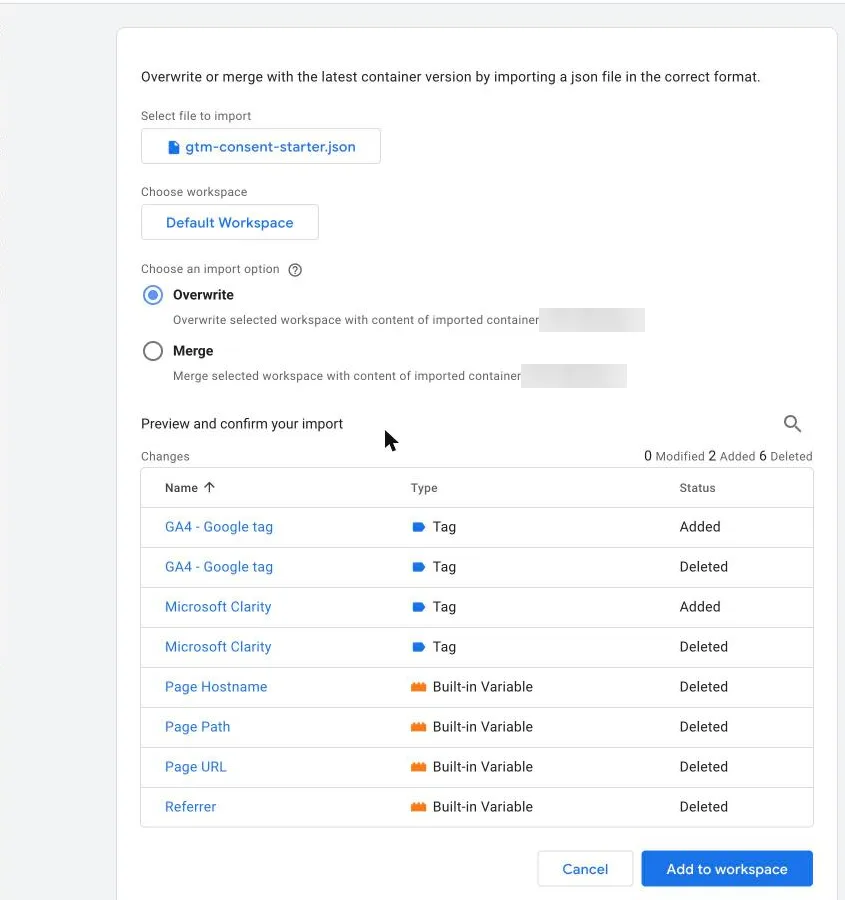
What you see when it works: a published version with 2 tags, 1 trigger and 1 variable. Nothing reaches your site yet; Step 9 adds the container code.
Step 9: Cookie banner and privacy page (Tag Manager consent mode)
To add a cookie banner to an Astro site, let Claude Code build the banner, set Google’s consent mode before Tag Manager loads, and write a privacy page.
Claude does this
Why: Analytics and Clarity set cookies, and visitors in the EU must agree first. Microsoft Clarity requires a consent signal for visitors from the EEA, the UK and Switzerland since 31 October 2025. Without it, recordings and heatmaps stay limited.
Paste into Claude Code:
Add Google Tag Manager GTM-XXXXXXX to my Astro site with a cookie banner. Rules:
1. Remove any old Google Analytics code, so nothing counts twice.
2. In the <head>, before Tag Manager loads: set Google consent mode defaults to denied for
   ad_storage, ad_user_data, ad_personalization and analytics_storage. If the visitor accepted
   before (saved in localStorage), set analytics_storage to granted and push the event
   consent_ready with analytics_consent: 'granted'.
3. A small banner at the bottom with equal Accept and Reject buttons and a link to /privacy.
   Accept: save the choice, update consent to granted, push consent_ready.
   Reject: save the choice, tell Clarity consent is denied, delete any _ga and _cl cookies.
4. A "Cookie settings" link in the footer that opens the banner again.
5. A /privacy page in plain English: Analytics and Clarity run only after Accept, the site is
   hosted on Cloudflare, messages are used only to reply, and how to ask for data to be deleted,
   including the data protection authority of my country.
Publish it to a preview link first, not to the live site.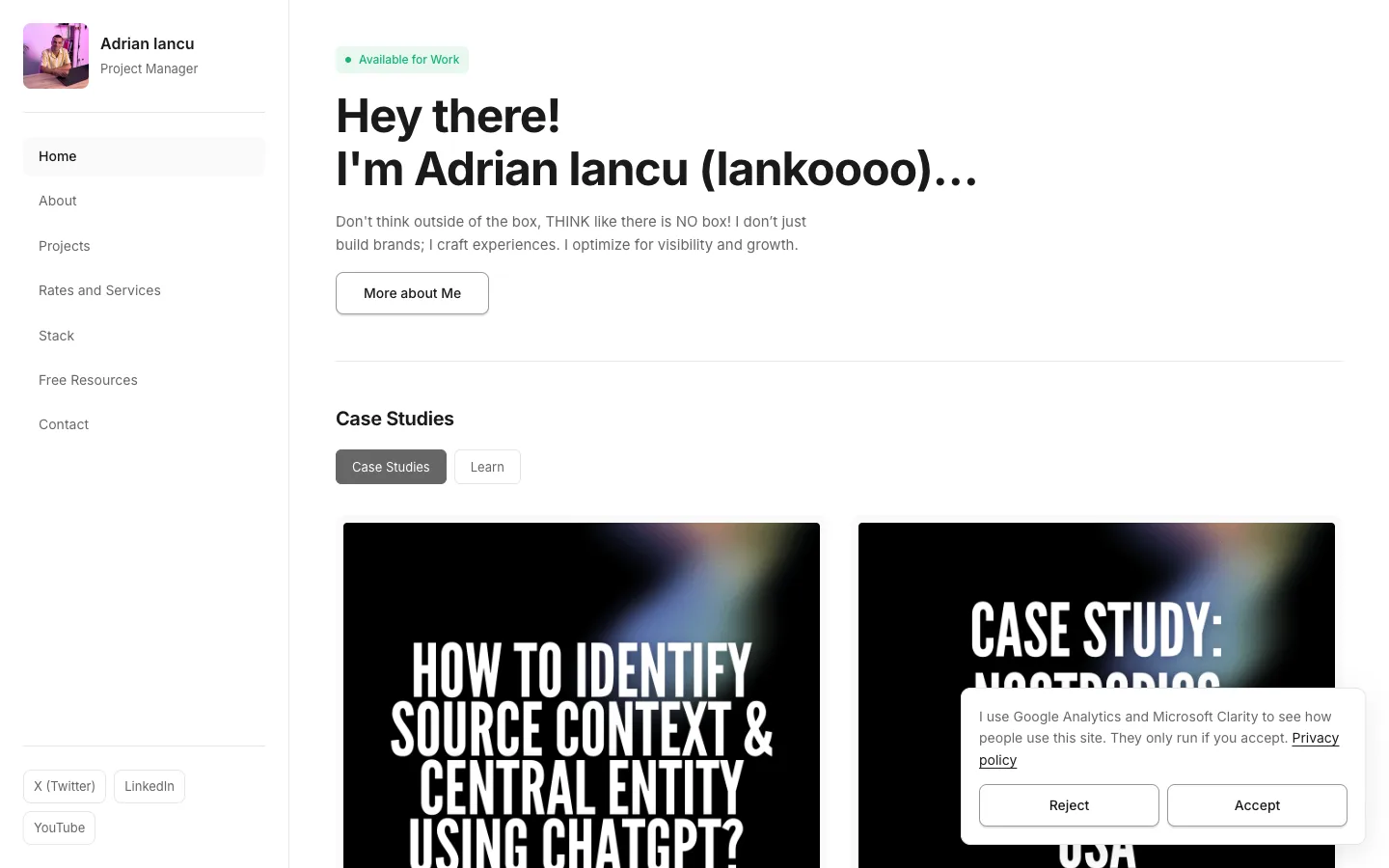
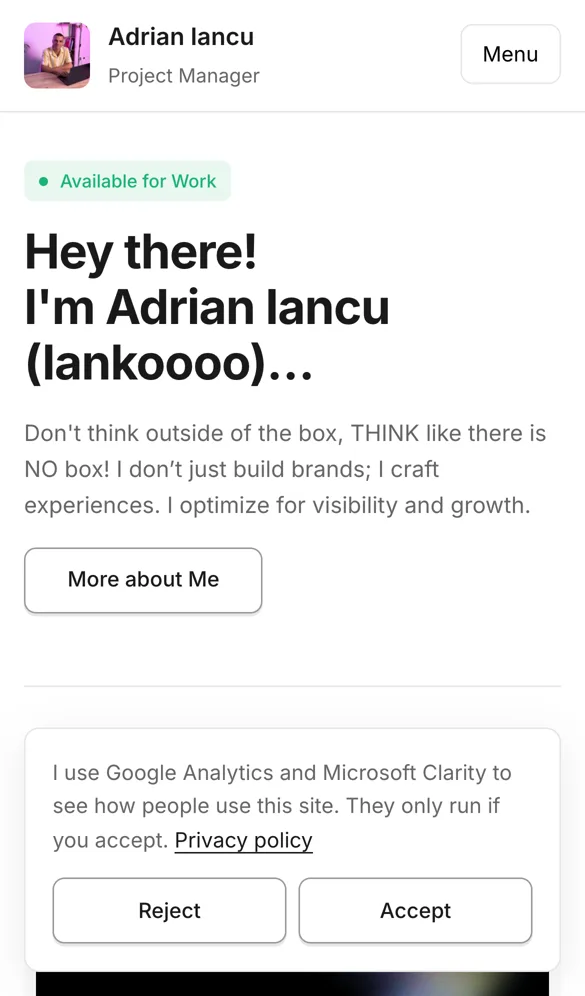
Why nothing runs before Accept: Google also offers an "advanced" consent mode that sends cookieless pings before a choice. I chose the stricter way: until a visitor clicks Accept, the site sends nothing to Google or Microsoft. Fewer numbers, no doubts.
Check the preview link, read the privacy page, then ask Claude to publish it to the live site.
Step 10: Email on your domain: Cloudflare Email Routing to Gmail
To forward email from your domain to Gmail, set up Cloudflare Email Routing: one destination, one rule, then let Cloudflare add the DNS records.
You do this
Why: an address on your domain, like [email protected], looks professional on the site and on LinkedIn. Cloudflare Email Routing forwards it to your inbox for free. It receives only; replies go out from your Gmail address.
- In Cloudflare, open Email Routing for your domain.
- Under Destination addresses, add your Gmail address. It is verified straight away when it is the address you log in to Cloudflare with. Otherwise, click the link Cloudflare emails you.
- Under Routing rules, click Create routing rule: the address you want (for example hello), action Send to an email, destination your Gmail.
- Under Settings, click Add missing records.
- Send a test email from another address and check it arrives.
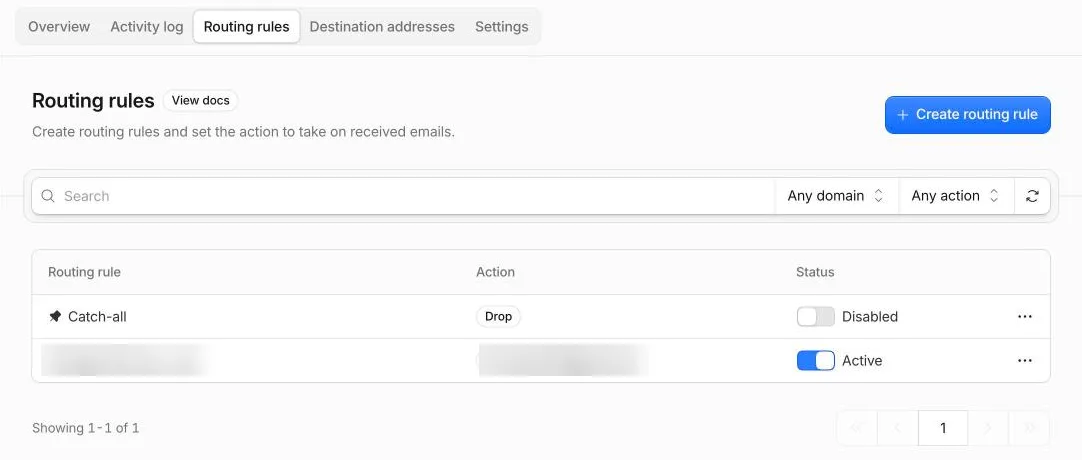
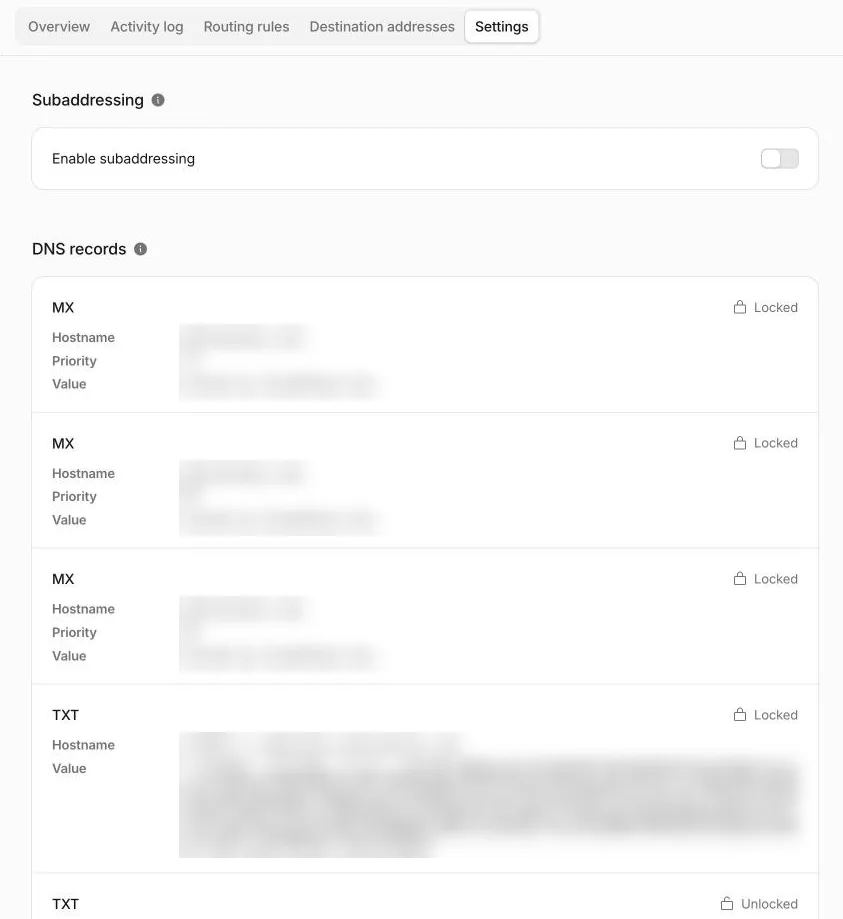
Lesson from my run: in part 1 we added an SPF record saying "this domain sends no email" (v=spf1 -all). Cloudflare marked it "Conflicting" and would not add its own SPF record until I deleted the old one. Delete it, then click Add missing records again. The DMARC record from part 1 stays as it is.
Step 11: Test everything
To test the Astro SEO setup, let Claude Code check the cookie banner in a real browser and check every page in the sitemap.
Claude does this
Why: a banner can look right and still let tracking through before Accept. Only a test that counts requests proves it.
Test the live site in a real browser (phone and desktop size) and show me numbers:
1. Before any choice: requests to google-analytics.com and clarity.ms, and cookies set. Both must be 0.
2. After Accept: Analytics and Clarity requests appear and _ga cookies are set.
3. After Reject, in a fresh browser: 0 requests and 0 cookies.
4. The choice is remembered on the next page, and the page has no sideways scrolling or script errors.
5. Every URL in the sitemap returns status 200, and /sitemap.xml redirects to the sitemap.
What you see when it works: a short report with numbers. My run showed 0 tracking requests before a choice and Analytics plus Clarity after Accept. Reject gave 0 requests and 0 cookies, and all 19 sitemap pages returned status 200.
After one week
After one week, open each tool once and check:
- Search Console: the Pages report lists indexed pages, and Performance shows the first impressions.
- Analytics: visits from people who clicked Accept. Fewer than your real visitors, because visitors who click Reject are not counted.
- Clarity: the first recordings and heatmaps.
- Bing: the sitemap still reads Success.
Still on my list: connecting the contact form to a form service.
Questions people ask about Astro SEO setup
Does Astro need an SEO plugin for this?
Astro does not need an SEO plugin for this setup. The setup in this guide happens outside the code: search engine accounts, Tag Manager and Cloudflare. Inside the code, part 1 already gave every page a title, a description, a canonical address and a sitemap.
Do I need Google Tag Manager?
You do not need Tag Manager for Analytics alone. I use it because Analytics and Clarity share one consent rule, and an ad pixel for a landing page can be added later without changing the site.
Is a cookie banner required?
A cookie banner is required when your site sets analytics cookies for visitors in the EU, which Analytics and Clarity do. Without consent, Clarity also limits recordings for visitors from the EEA, the UK and Switzerland.
Why does Google Analytics show no data?
Analytics only counts visitors who clicked Accept, and new data can take up to 24 hours to appear in reports. Accept the banner on your own site, then check the Realtime report.
Why does the sitemap say “Couldn’t fetch”?
“Couldn’t fetch” right after submitting is normal. Mine changed to Success within about an hour. Check that the address starts with https and opens in a browser, if it stays that way for days.
Is Yandex worth it?
Yandex brings little traffic outside a few countries, but it takes 5 minutes, and IndexNow keeps it updated for free.
What does this setup cost?
This setup costs 0 EUR a month. Search Console, Bing, Yandex, Analytics, Clarity, Tag Manager, Crawler Hints and Email Routing are all free.