Connect Every Google Workspace Mailbox to Your AI Morning Brief
Let's get in touch
Every morning at 8:00 my AI assistant reads the company mailboxes of my travel agency and tells me which emails still wait for a reply. On 26 October we moved the agency’s email from our old host to Google Workspace. Three days later I wanted to check that an email a colleague had sent to a supplier really went out. I could not. The morning brief was still reading the old mailboxes, where nothing new had arrived since 28 October. It showed no error. It just went quiet.
This guide is how I fixed it in a few hours with Claude Code: one connection that reads all six company mailboxes, writes drafts, and can send only from the addresses I allow. It is written for beginners. Every new idea gets one everyday picture, and every click is shown.
Prefer a checklist? The free Connect Google Workspace Email to AI Trello template has a card for every step below.
What you get at the end: one key that lets your AI assistant read every mailbox in your Google Workspace, create drafts, and send email only from addresses you approve. Your colleagues do not have to share passwords or click anything. It costs 0 EUR on top of the Workspace subscription you already pay.
The idea in one picture
Think of your company email as an apartment building with a mailbox for each person.
- The old way is to ask each tenant for a copy of their mailbox key. That is an app password: one key per mailbox, made by the owner of that mailbox.
- The new way is a master key held by the building’s caretaker. That is a service account: a robot user that belongs to your company, not to a person.
- The master key opens nothing until the building manager writes down which doors it may open. That written permission is domain-wide delegation, and you sign it in the Admin console.
- The building also has a rule that forbids cutting new master keys. That rule is an organization policy. We lift it for a few minutes, cut one key, and put the rule back.
Which way should you choose?
| App password | Service account | |
|---|---|---|
| Best for | One mailbox, yours | Every mailbox in the company |
| Who has to act | The owner of each mailbox | Only the Workspace admin, once |
| Works for people who never signed in | No | Yes |
| What it can do | Read and send for that one person | Exactly the permissions you list, for everyone |
| Setup time | 10 minutes per mailbox | About 45 minutes, once |
I started with an app password, and it failed. The simpler way is at the end of this guide, with the reason it did not work for me.
What you need before you start
| What | Why you need it | Cost |
|---|---|---|
| Google Workspace with admin rights | Only an admin can sign the delegation | The subscription you already pay |
| A Google Cloud account on the same domain | The service account lives in a Cloud project | Free, no billing account needed |
| Claude Code | Checks your mail setup, writes the connector, runs the tests | Your Claude subscription |
| Claude in Chrome (optional) | Lets Claude open the consoles and click through the safe steps | Your Claude subscription |
Two labels show who does what:
- You do this means signing in, and every click that changes a security setting.
- Claude does this means you paste a prompt into Claude Code and check the result.
The rule I kept the whole time: Claude did the navigation, the reading, the code and the tests. Every security setting (two-step verification, roles, policies, the key, the delegation) was clicked by me. If a page asks for your password, type it yourself.
Part 1: Find what broke
Step 1: Check where your email lives now
To find out why your AI stopped seeing new email, check which server receives mail for your domain today.
Claude does this
Why: after a migration, your domain’s MX record points to the new host, but your scripts may still read the old one. Nothing fails loudly. The old mailbox simply stops receiving.
Check the MX and SPF records of mydomain.com and tell me which provider receives
and sends our email now. Then check every script on this computer that reads email
and list which server each one connects to.
What you see when it works: a short answer like the one I got: MX and SPF point only to Google, and the morning brief still reads the old host, which has received nothing since 28 October.
Lesson from my run: a script that keeps sending email through the old host fails SPF after the move, and its messages risk landing in spam. Move sending to Google too, not just reading.
Step 2: List every mailbox
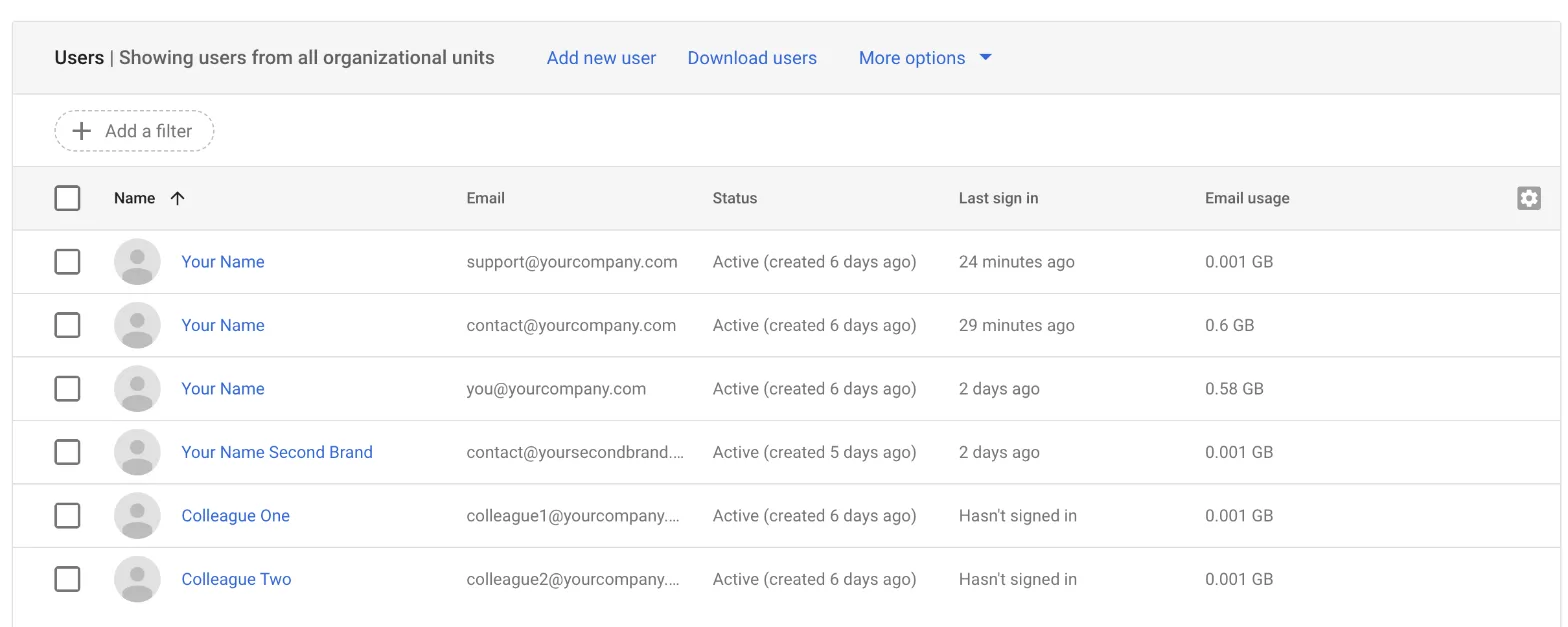
To see what you need to connect, open the user list in the Google Admin console.
You do this
- Open admin.google.com and go to Directory, then Users.
- Write down every address, including shared ones like contact@ and support@.
- Look at Last sign in. “Hasn’t signed in” means nobody has read that mailbox since the move.
What you see when it works: a list like the one in the picture above. Mine had six mailboxes, and two colleagues had never opened theirs. Their new email was sitting there unread. Tell them that day.
Part 2: Make the master key
Step 3: Create a Google Cloud project
To create a service account, you first need a Google Cloud project to hold it.
You do this + Claude does this
Why: a project is a folder in Google Cloud. This one holds only the email robot, so you can find it, check it and delete it in one place.
- Open console.cloud.google.com with your Workspace admin account.
- Click New project and name it something like
company-mail.
I let Claude in Chrome open the page and type the name. The first time, Google asked me to confirm my password. I typed it myself.
Step 4: Turn on the Gmail API
To let a program talk to Gmail, switch on the Gmail API in the new project.
Claude does this
Why: the Gmail API is the door programs use to read and write email. It is off by default in every new project.
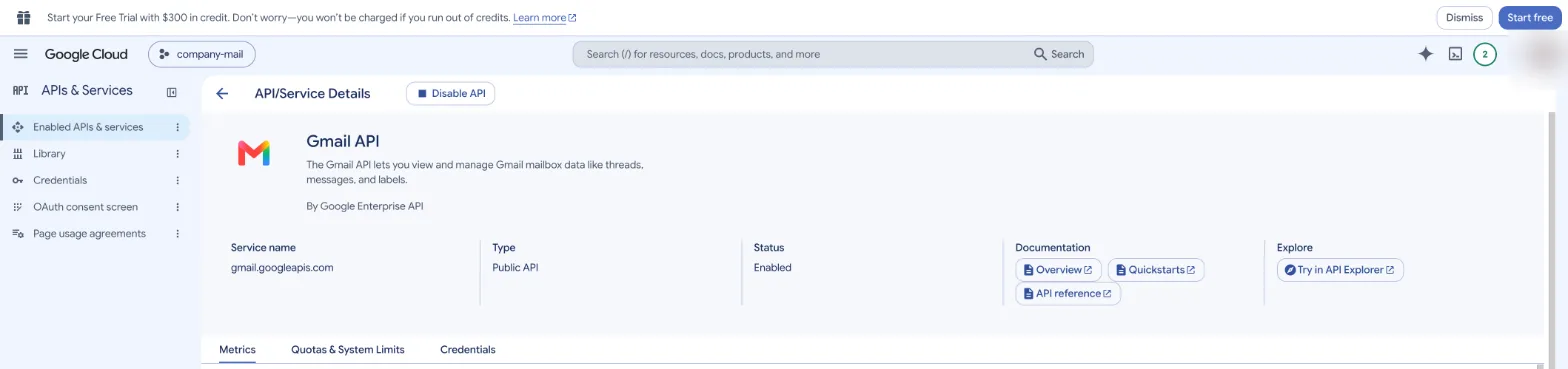
In the project, open APIs & Services, then Library, search for Gmail API and click Enable.
Step 5: Create the service account
To create the robot user, add a service account in the project. It needs no roles in the project.
Claude does this
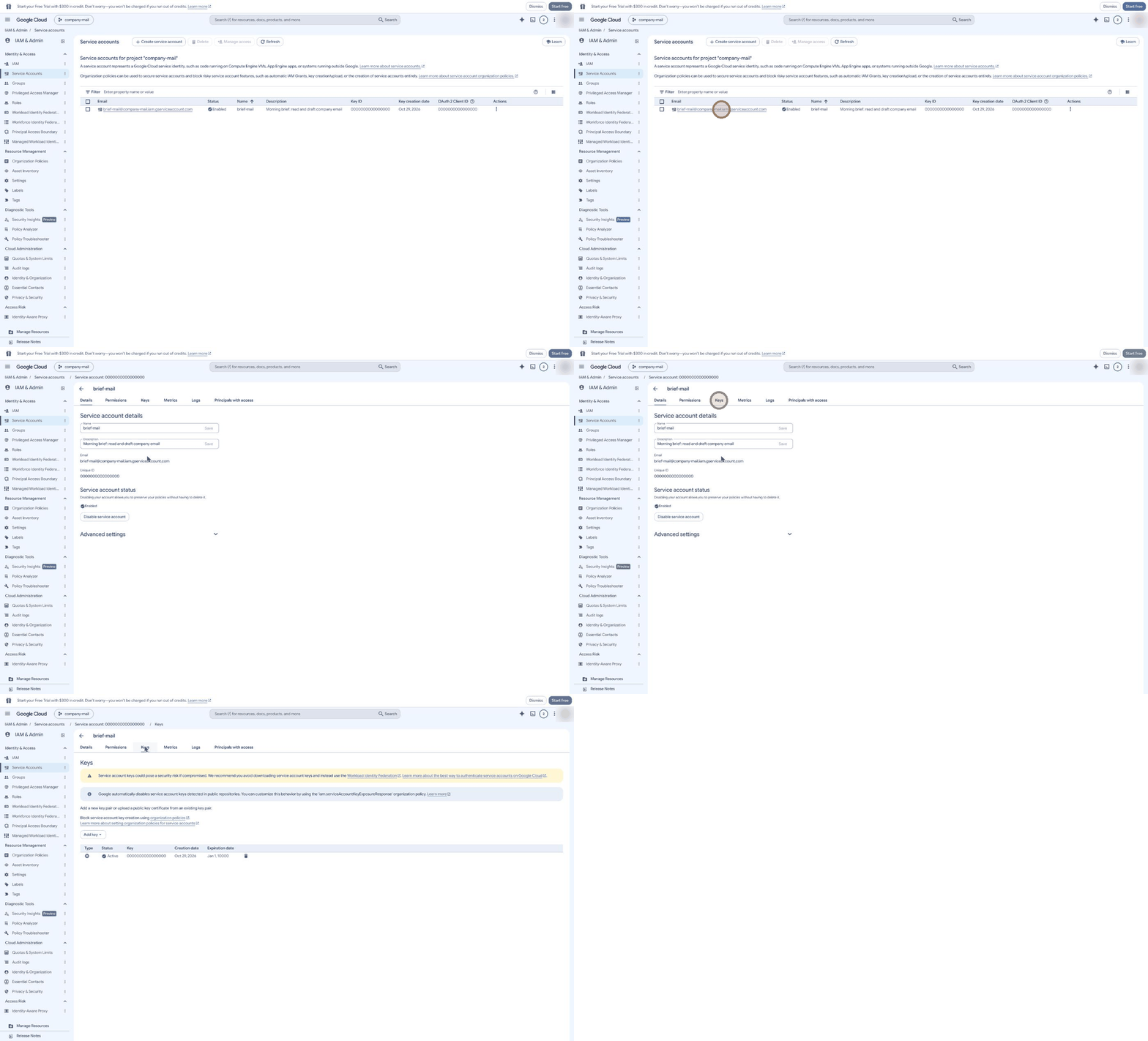
- Open IAM & Admin, then Service accounts, then Create service account.
- Name it
brief-mailand write one line about what it is for. - Skip the optional permission steps and click Done.

Step 6: When Google blocks the key
To create a key on a new Google organization, you may first have to lift one security rule, only for this project.
You do this
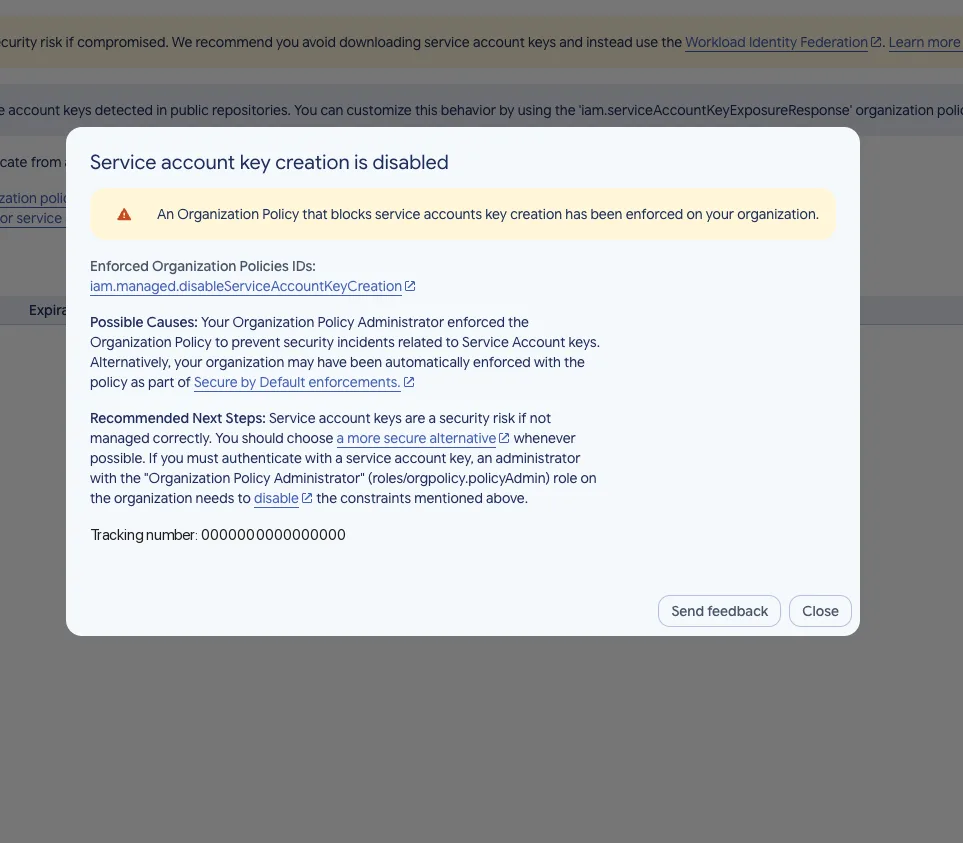
Why: when I clicked Add key, Google said “Service account key creation is disabled”. Google can switch on the rule iam.managed.disableServiceAccountKeyCreation automatically for new organizations, as part of its Secure by Default settings. It is a good rule. We keep it for the whole company and turn it off only on this one project, for a few minutes.
6a. Give yourself the right role. Being the Workspace admin is not enough. You need the role Organization Policy Administrator, and it must be given on the organization, not on the project.
- Open IAM & Admin, then IAM.
- In the project picker at the top, choose your organization (the row with the building icon), not the project.
- The title must read “Permissions for organization”. Click Grant access, add your own address, choose Organization Policy Administrator and save.
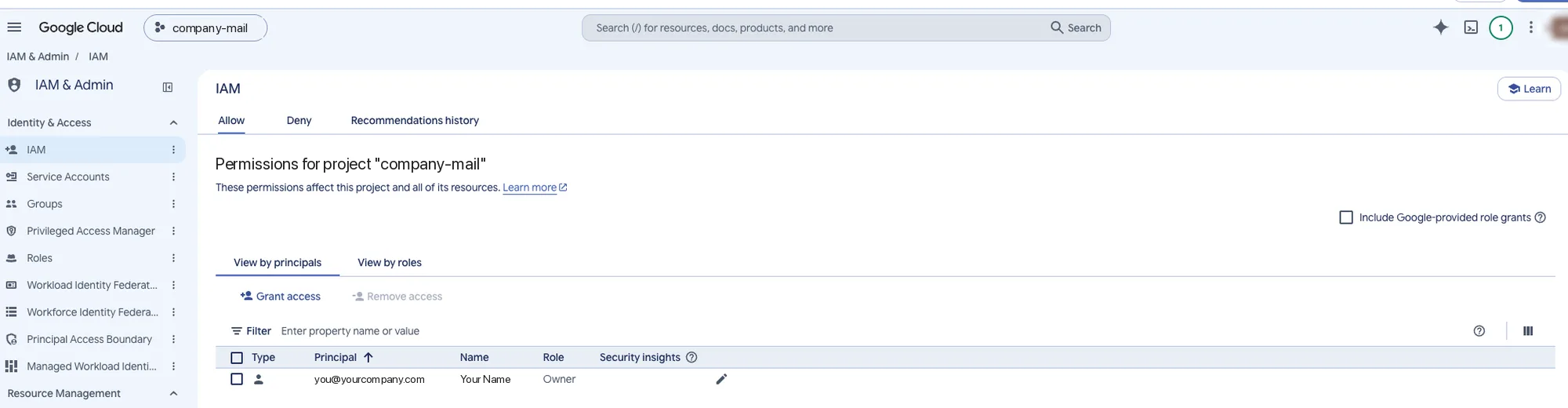
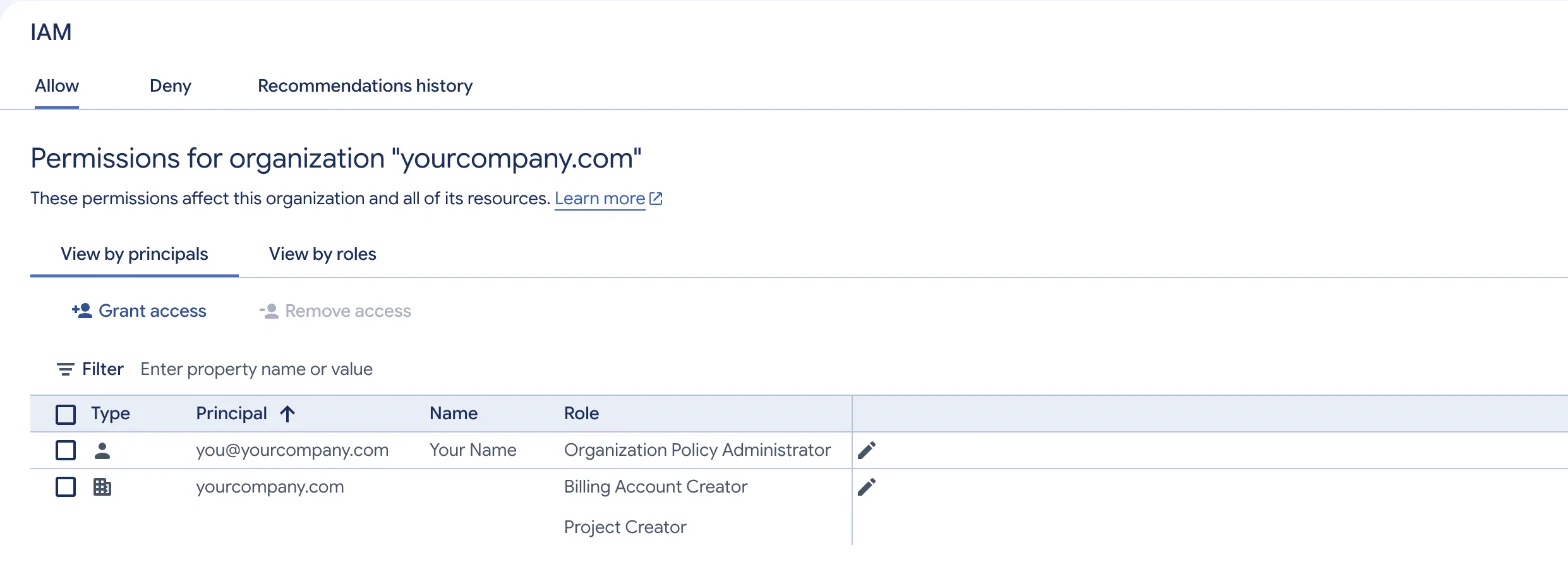
Lesson from my run: on the organization page, the row for the whole domain was ticked in my screenshot. One click on Remove access would have taken away the domain's right to create projects. Untick it before you do anything else.
6b. Turn the rule off for this project only.
- Open IAM & Admin, then Organization Policies, with your project selected at the top.
- Filter on
disableServiceAccountKeyCreationand open the rule marked Managed. - Click Manage policy, choose Override parent’s policy, set enforcement to Off and click Set policy.
- If the older rule without “managed” in its ID is also active, do the same for it.
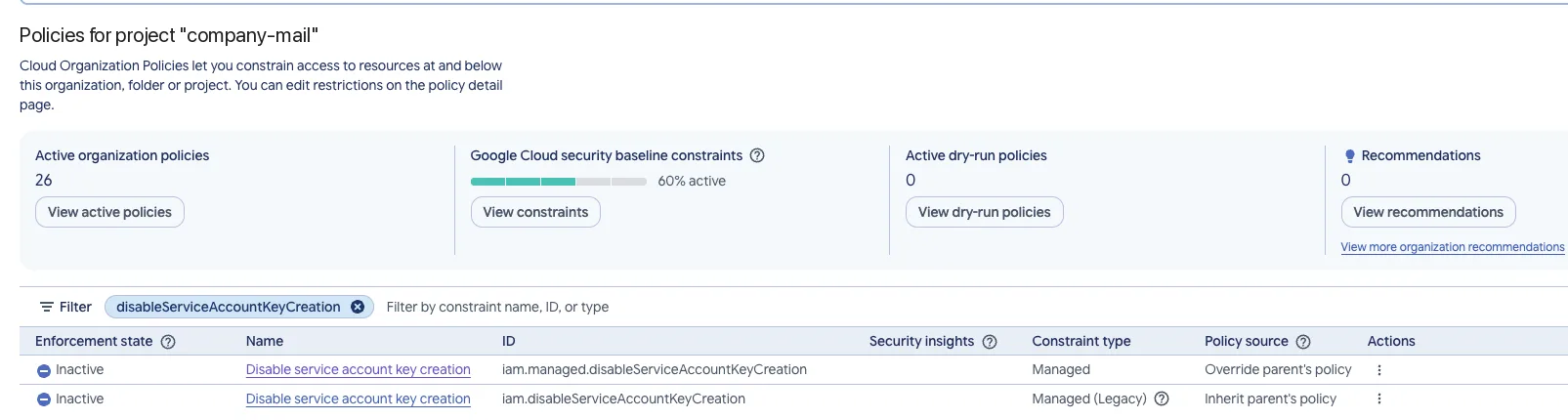
A new role can take a minute or two to work. If Manage policy stays grey, reload the page.
Step 7: Create the key and lock it away
To get the key file, create a JSON key on the service account, then let Claude move it somewhere only your user can read.
You do this + Claude does this
Why: this file is the master key. Anyone who has it can read every mailbox you delegate in Step 8. It never goes in a project folder, a Git repository, a chat or an email.
- On the service account, open Keys, then Add key, Create new key, JSON, Create. The file downloads.
- Do not open it. Tell Claude where it landed and paste:
Move the service account key file from <where it landed> to ~/.config/ai-operator/google/,
make the folder readable only by my user (chmod 700) and the file too (chmod 600).
Check the old location is not inside a Git repository. Do not print the file's contents.
Show me only the service account email and confirm the old copy is gone.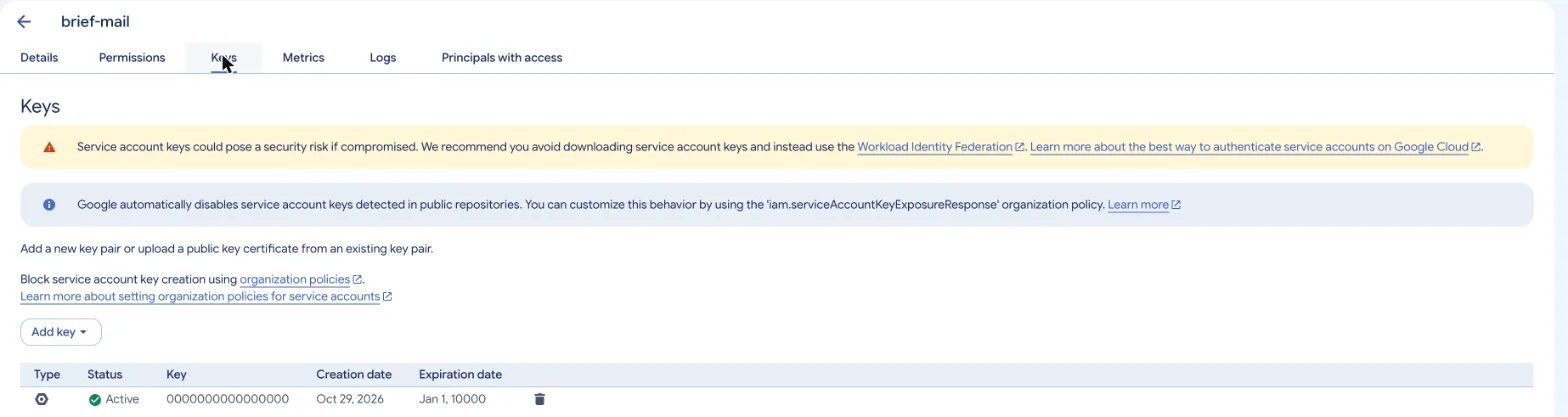
Lesson from my run: my key did not land in Downloads. It landed inside a project folder. That folder was not a Git repository, so nothing leaked, but check where the file went every time.
Step 8: Sign the delegation
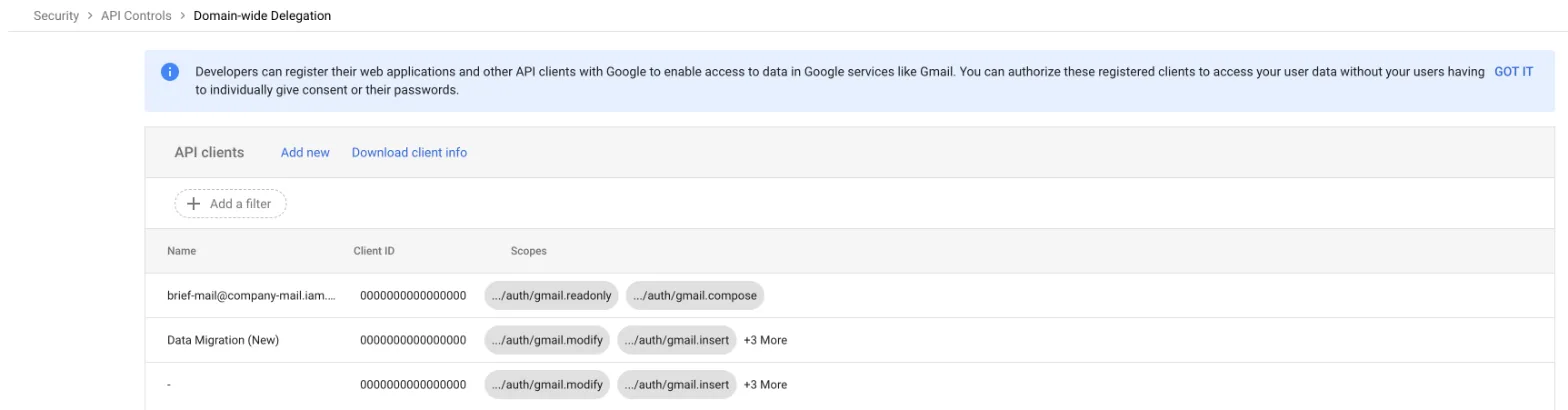
To let the service account open mailboxes, add it under Domain-wide delegation in the Admin console with exactly two permissions.
You do this
Why: this is the building manager signing which doors the master key opens. Without it, the key opens nothing.
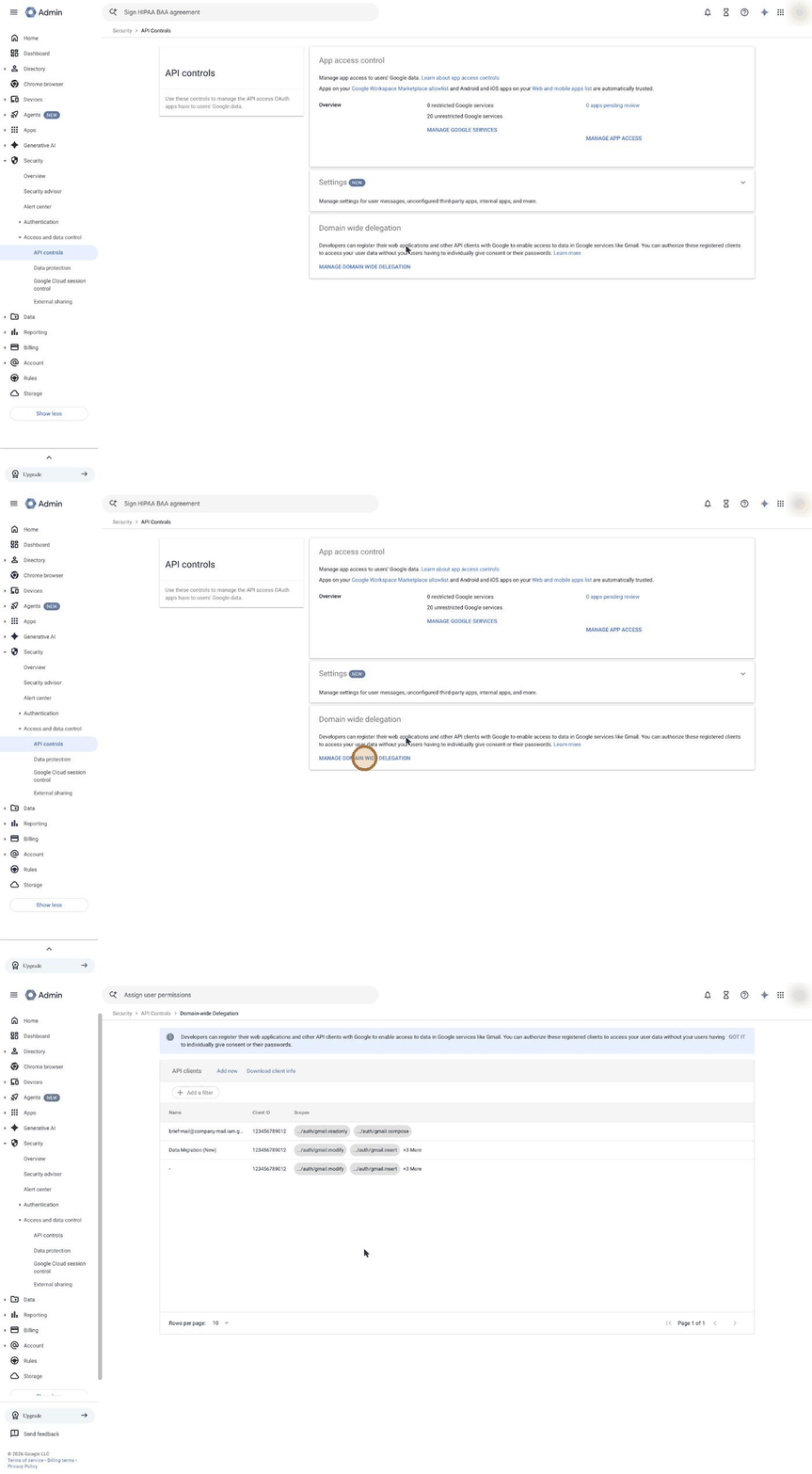
- Open admin.google.com, then Security, Access and data control, API controls, Manage domain wide delegation.
- Click Add new.
- Client ID: the OAuth 2 Client ID of your service account (the long number from Step 5).
- OAuth scopes: paste this as one line:
https://www.googleapis.com/auth/gmail.readonly,https://www.googleapis.com/auth/gmail.compose- Click Authorize.
What the two permissions mean:
gmail.readonlyreads email. It cannot change or delete anything.gmail.composecreates drafts and sends email. It can delete drafts, but not your other messages, and it cannot change account settings.
If you only want reading, paste only the first one. You can add the second later.
Part 3: Connect and test
Step 9: Let Claude write the connector
To use the key, let Claude Code write a small connector your morning brief can call.
Claude does this
Why: the key proves who the robot is. The connector asks Google for a short-lived pass for one mailbox at a time, and it is where you put your own safety rules.
Write a small Python module that uses the service account key in ~/.config/ai-operator/google/
with domain-wide delegation to:
1. get an access token for a given company address (read scope by default),
2. read messages and threads from that mailbox,
3. create a draft in a mailbox,
4. send an email, but only from an allowlist of addresses I give you, and refuse every other sender.
Never print the key or the tokens. Then switch my morning brief to use this module for all
mailboxes on my domain, and keep a backup of every file you change.
My allowlist has three addresses: contact@, support@ and mine. The two colleagues’ mailboxes can be read, but Claude cannot send as them.
Sending still needs me. Being able to send is not the same as being allowed to. My rule stays the same: no email leaves until I approve the exact text and the recipients.
Step 10: Test every mailbox
To test the connection, ask Claude to open every mailbox once, create one draft, and try one forbidden send.
Claude does this
For every address on my domain: get a token, read the mailbox profile and count the
messages from the last 3 days. Then create one test draft in my own mailbox (do not send it),
and try to send from an address that is not on the allowlist. Show me a table.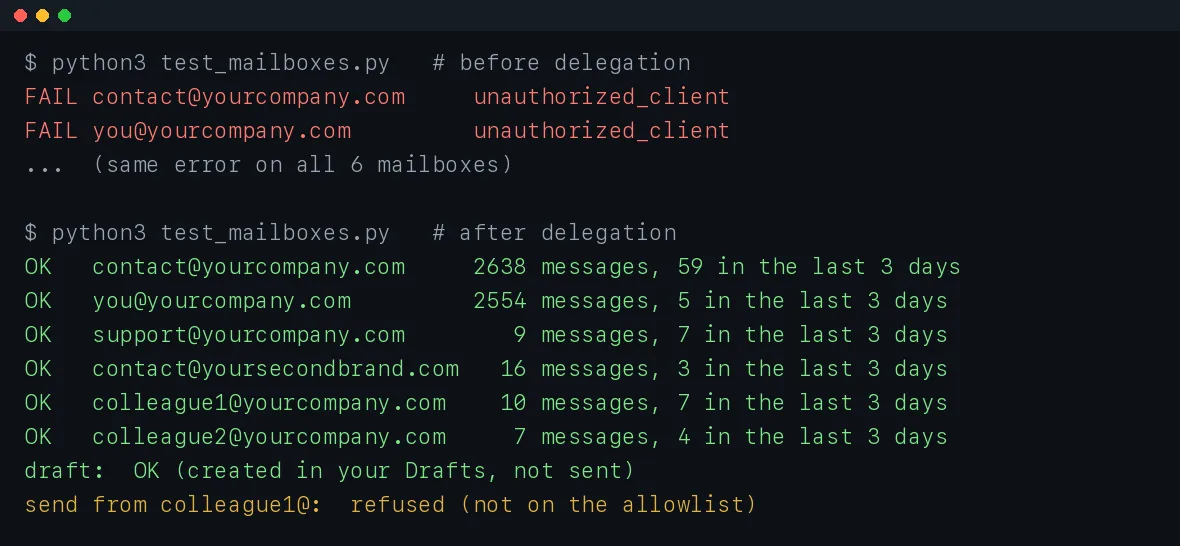
Lesson from my run: the first test failed on all six mailboxes with unauthorized_client. The delegation from Step 8 was simply not saved: the list in the Admin console had only Google's two migration rows. I added it again, and the next test passed a few minutes later.
What you see when it works: OK on every mailbox, one draft in your Drafts folder, and one refused send. Delete the test draft afterwards.
Step 11: Put the rule back
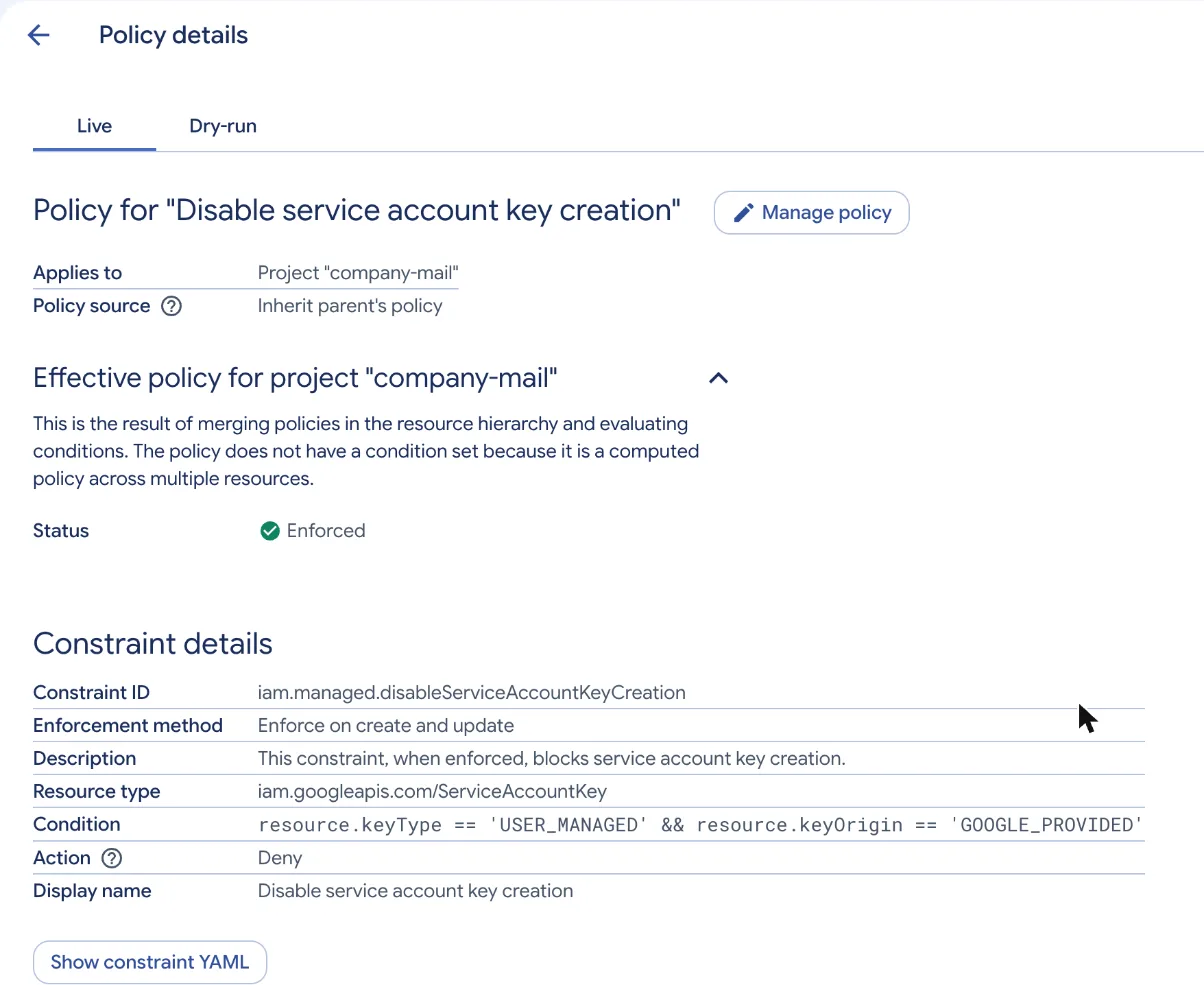
To close the door you opened in Step 6, set the key policy on the project back to the company default.
You do this
Why: the key you made keeps working. Turning the rule back on only stops anyone from making new keys.
- Open Organization Policies on the project and open the managed Disable service account key creation rule.
- Click Manage policy, choose Inherit parent’s policy and click Set policy.
- Ask Claude to run the test from Step 10 once more.
The simpler way: an app password for one mailbox
To connect a single mailbox without admin work, use an app password and IMAP.
You do this + Claude does this
When to choose it: you have one or two mailboxes, they are yours, and you are not the Workspace admin.
- Sign in to the mailbox and turn on two-step verification at myaccount.google.com/signinoptions/twosv.
- Open myaccount.google.com/apppasswords, create a password called “brief” and copy it.
- Save it with a command that hides what you type, never by pasting it into a chat. In the macOS Terminal (zsh):
mkdir -p ~/.config/ai-operator/mail && read -s "p?App password: " && printf '%s' "${p// /}" > ~/.config/ai-operator/mail/[email protected] && chmod 600 ~/.config/ai-operator/mail/[email protected] && unset p && echo saved- Ask Claude to read the mailbox over IMAP at
imap.gmail.com, port 993.
Why it failed for me first: the app passwords page did not open at all. The account's security page said "2-Step Verification is off". I had added an authenticator app that morning, but adding the app does not turn verification on. Turn it on, then the page appears. It also cannot help with mailboxes whose owners never signed in, which is why I switched to the service account.
What to do when it breaks
| What you see | What it means | What to do |
|---|---|---|
unauthorized_client on every mailbox |
The delegation is missing, or has another Client ID | Check Step 8. The Client ID must match the service account exactly |
unauthorized_client only when sending |
The gmail.compose scope is missing |
Edit the delegation and add the second scope |
| One mailbox fails, the others work | That user was deleted, renamed or suspended | Update your list of addresses |
| Google says the key is invalid | Someone deleted or disabled the key | Make a new key (Steps 6, 7 and 11) |
Rotate the key once a year, or the same day if the file may have leaked: lift the rule (Step 6b), create a new key (Step 7), test (Step 10), delete the old key on the Keys tab, put the rule back (Step 11).
A new employee joins: nothing to do in Google. Add their address to your brief’s list. Tell them on day one that the company’s system reads work email.
Someone leaves: suspend or delete their Workspace user. The robot loses that mailbox at the same moment.
Switch it all off: delete the row in Domain-wide delegation. The key stops opening mailboxes, usually within minutes. Then delete the key, and the project if you no longer need it.
The migration lesson
My brief went blind for three days and nobody noticed, because it never showed an error. Before any move of email, website or servers, make one list of everything that reads from the old system, and test each item the day after:
- Morning brief or inbox summary
- Scripts that send email (quotes, invoices, notifications)
- Inbox monitors and alerts
- Forwarding rules and auto-replies
- Mail apps on phones and laptops
- Passwords saved for the old host
- Each colleague’s first sign-in to the new mailbox
Questions people ask about connecting Google Workspace email to AI
Is a service account safe?
A service account is as safe as the place you keep its key. Keep the key outside every project folder, readable only by your user, give it only the scopes you need, and keep key creation blocked for the rest of the company. Google’s own recommendation is to avoid downloaded keys where you can. For a script on your own computer, a locked key file is the practical choice.
Does this cost money?
It costs 0 EUR. The Cloud project needs no billing account for the Gmail API, and Workspace is the subscription you already pay.
Can the AI send email on its own?
The AI can send only from the addresses in your allowlist, and only when you tell it to. In my setup, nothing leaves without my approval of the exact text and the recipients.
Should I tell my colleagues?
Yes. Tell them that the company’s system reads work email to keep track of clients. In the EU, people should know how their work email is processed.
Why not let each person connect their own account?
Each person connecting their own account works for one or two people. It breaks for shared addresses like contact@, and for anyone who has not signed in yet. One delegation covers all of them, and one row switches it off.
How long does the delegation take to work?
Usually a few minutes. Google’s help pages say it can take up to 24 hours. Mine worked a few minutes after I saved it correctly.
What if I am not the Workspace admin?
Use the app password way for your own mailbox, or ask your admin to do Steps 2, 6, 8 and 11. Those are the steps that need admin rights.